Workspace settings
Settings > Workspace holds the settings of the current workspace. Owners and admins can change them; for developers and viewers, saving is refused.
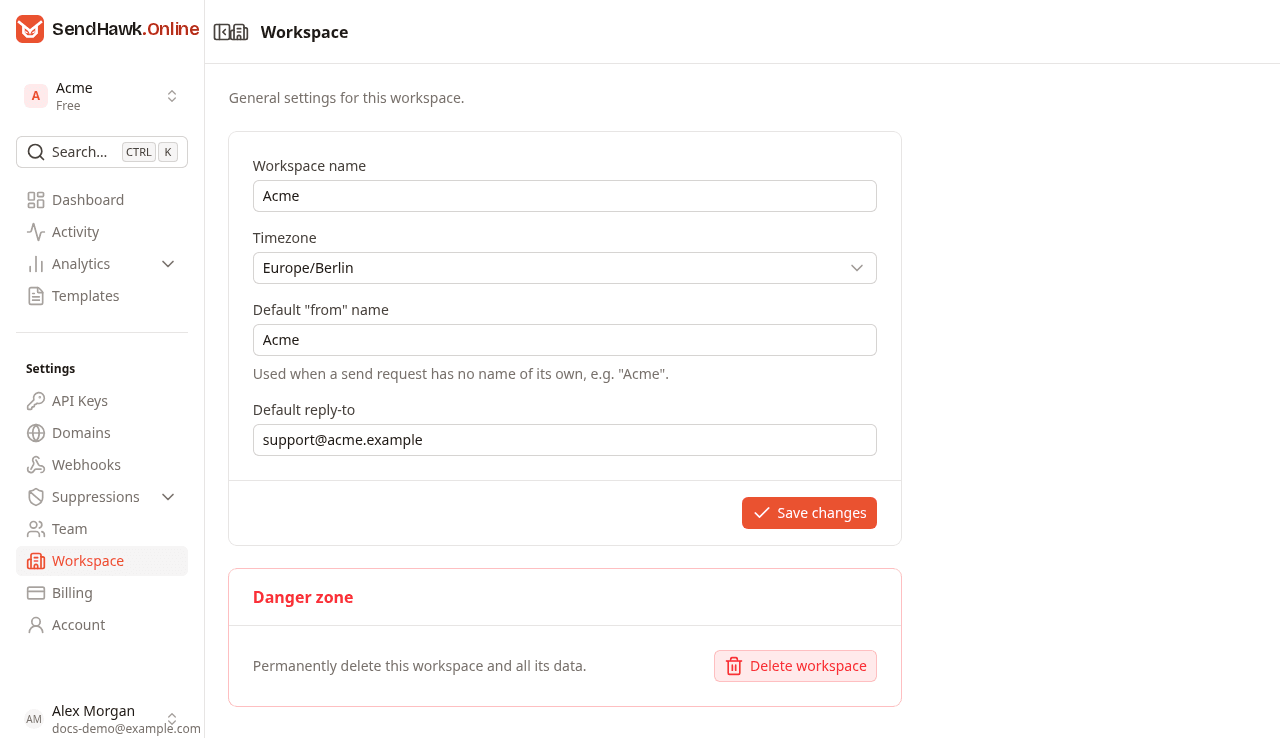
| Field | What it does |
|---|---|
| Workspace name | Shown in the workspace switcher and on invitations. Required. |
| Timezone | Dates and times in the dashboard are shown in this time zone, for everyone in the workspace. Daily figures in the charts are still counted in UTC days, and the charts say so. |
| Default "from" name | The display name in front of your sender address when a send does not bring its own. With Acme, an email sent from hello@yourdomain.com goes out as "Acme" <hello@yourdomain.com>. At most 100 characters, without line breaks or < >. Leave it empty to send the bare address. |
| Default reply-to | Where replies go when a send does not set its own replyTo. It must be an email address, for example a support mailbox. Leave it empty and replies go to the sender address. |
Click Save changes. The dashboard says "Workspace updated", or shows under the field what is wrong.
The two defaults apply to every email of the workspace: those sent through the API and the test sends from the dashboard. A name or reply-to in the request always wins.
Create another workspace
Use separate workspaces to keep things apart, such as production and staging, or two products: each has its own domains, keys, templates, emails and team. Create one from the workspace switcher with Create workspace. You become its owner.
A domain can belong to only one workspace, so the same domain cannot verify in both. Use a subdomain, such as staging.yourdomain.com, for the second one.
Delete the workspace
Only the owner can delete a workspace. In the Danger zone, click Delete workspace and confirm.
This permanently deletes the workspace with its domains, API keys, templates, emails, webhooks, suppressions and members. Its domains are removed from Amazon SES, so sending from them stops at once, and its API keys stop working. It cannot be undone.
Afterwards the dashboard switches to your next workspace. If it was your last one, a new, empty workspace called My workspace is created for you straight away.
Team, roles and invitations
Invite teammates by email, give each one a role, change or remove it, and accept an invitation to someone else's workspace.
Billing, plans and limits
Your workspace's plan, how much of its monthly volume is used, what happens at the limit, and every other limit that applies.