Templates
A template is an email you design once and send many times: a subject, an HTML body and an optional plain-text body, with merge tags where each send fills in its own values. Templates lists them; clicking one opens the editor. Templates and variables explains how to send a template through the API.
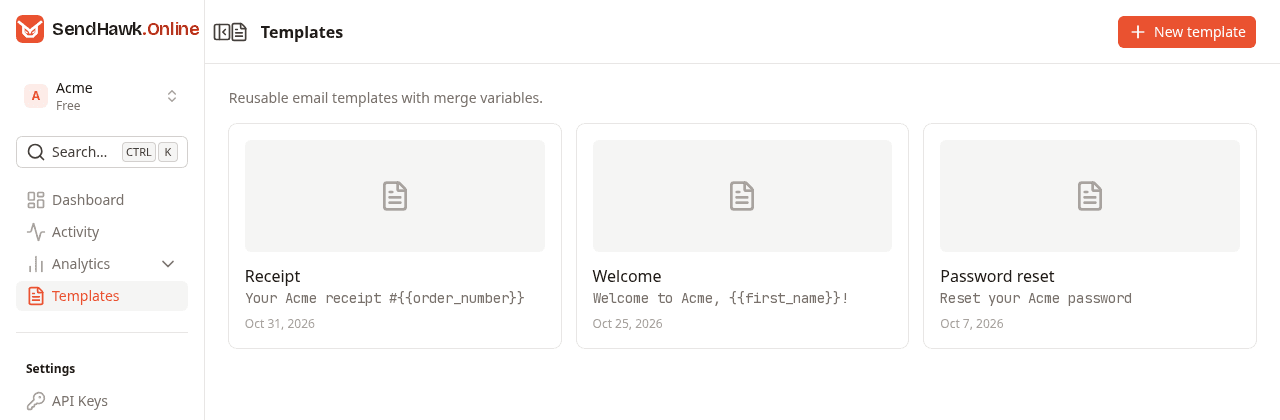
Each card shows the template's name, its subject with the merge tags in it, and when it was last saved. Click a card to edit the template, or New template to start an empty one.
Owners and admins create, change, delete and test templates. Developers and viewers can open the editor and the preview, but saving, deleting and test sends are refused for them.
The editor
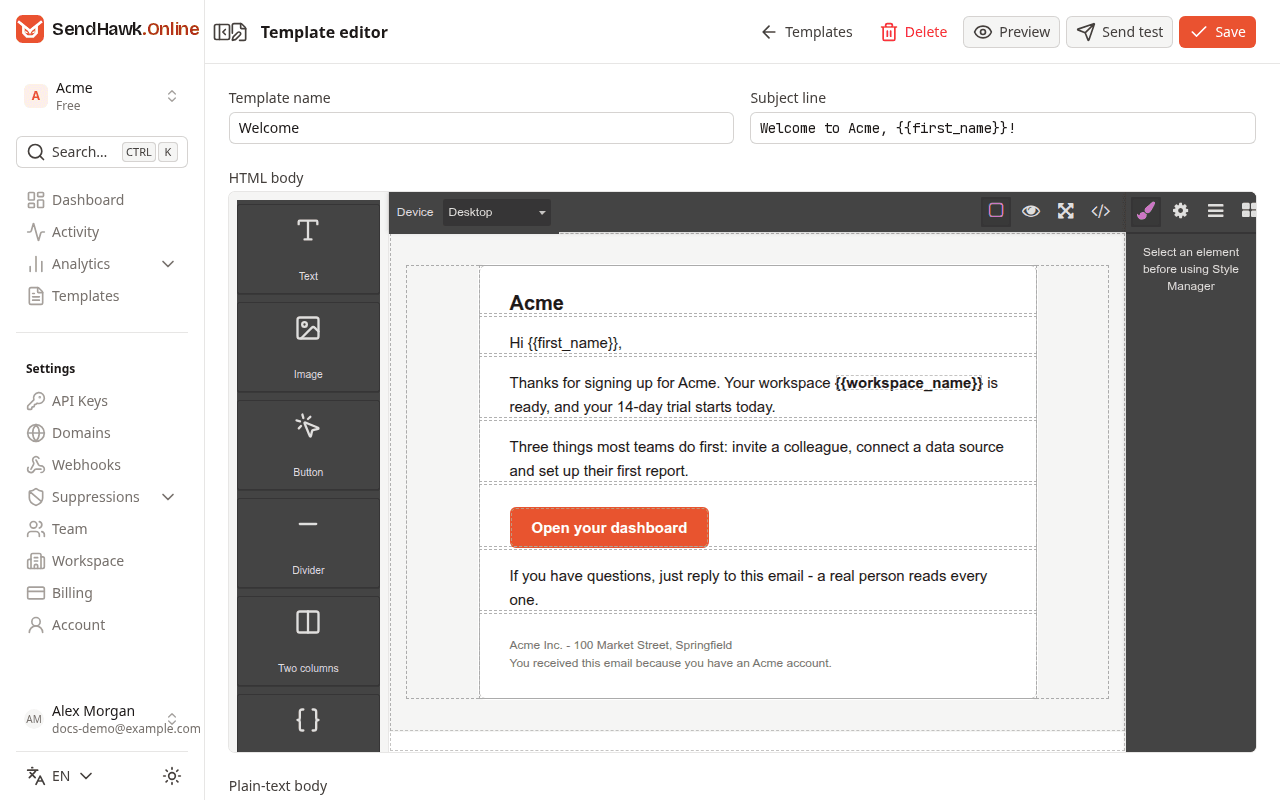
The buttons at the top:
| Button | What it does |
|---|---|
| Templates | Back to the list. |
| Delete | Deletes the template after you confirm. Not shown on a new template. |
| Preview | Shows the email as it currently looks, see Preview. |
| Send test | Sends the saved template to you, see Send a test. Not shown on a new template. |
| Save | Saves the template. |
The fields:
- Template name: your own label, shown on the list. Required.
- Subject line: the email's subject, merge tags allowed. Required.
- HTML body: the drag-and-drop builder, described below.
- Plain-text body: optional. Mail clients that do not show HTML show this instead. Leave it empty to send HTML only.
- Variables: the merge tags found in the subject and both bodies, listed after you save.
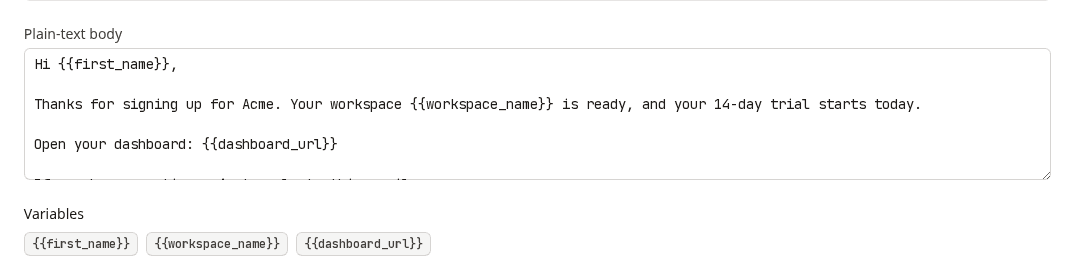
The builder
Drag a block from the left onto the canvas:
| Block | Adds |
|---|---|
| Text | A paragraph. Double-click it on the canvas to type. |
| Image | An image, with a placeholder picture for you to replace. |
| Button | A link styled as a button, pointing at https://example.com until you set your own link. |
| Divider | A horizontal line. |
| Two columns | A two-column row, built from a table so it holds up in mail clients. |
| Merge tag | A highlighted {{variable}} to rename to the variable you need. |
Click an element on the canvas to select it. The panel on the right and the toolbar above the canvas are the builder's own, for styling the selected element, viewing its layers and settings, and previewing or viewing the code.
When you save, the builder's styles are written into style attributes on the elements themselves, because many mail clients ignore <style> blocks.
Saving and unsaved changes
Save checks that the template has a name and a subject, and shows "Give the template a name." or "Add a subject line." under the field that is missing. A new template gets its own address, /templates/<id>, once saved. The id at the end of that address is the templateId you send with the API.
Leaving the editor with unsaved changes asks Leave without saving?, with Stay and Discard changes. Closing the browser tab shows the browser's own warning.
Merge tags and escaping
A merge tag is a variable name in double braces, such as {{first_name}}. Names use letters, digits and underscores; spaces inside the braces are allowed. Each send replaces the tag with the value passed for it:
| You write | In the HTML body | In the subject and plain-text body |
|---|---|---|
{{first_name}} | The value, HTML-escaped: <, >, & and quotes become entities, so a value like Ada <b> shows as text. | The value as it is. |
{{{line_items}}} | The value as it is, unescaped. Use it only for HTML you built yourself. | The value as it is. |
A tag without a value stays in the email exactly as written, so a forgotten first_name arrives as the text {{first_name}}.
{{{triple braces}}}. It reaches the recipient's mail client as HTML, sent from your domain.Preview
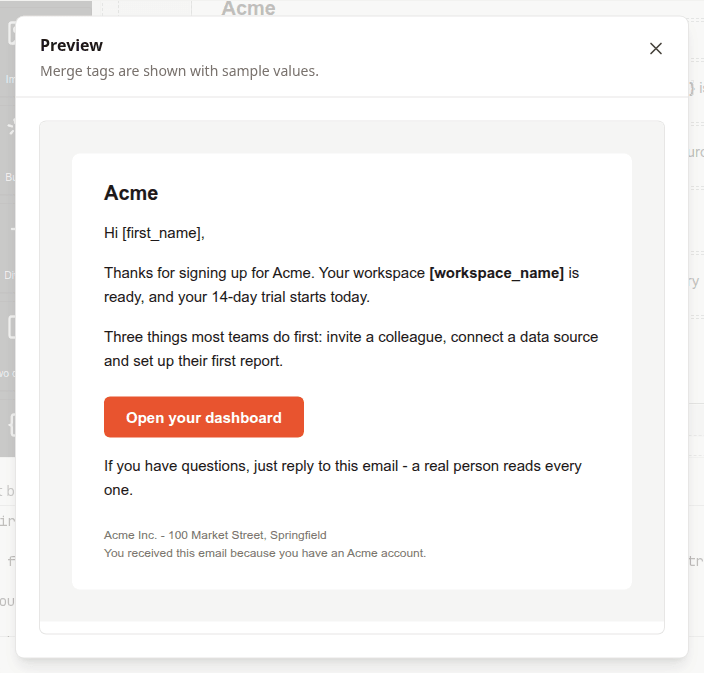
Preview shows what is on the canvas now, unsaved changes included, with its styles, on a white background as in an inbox. Merge tags show as their names in brackets, [first_name], for both {{first_name}} and {{{first_name}}}.
Send a test
Send test sends the template to your own account address:
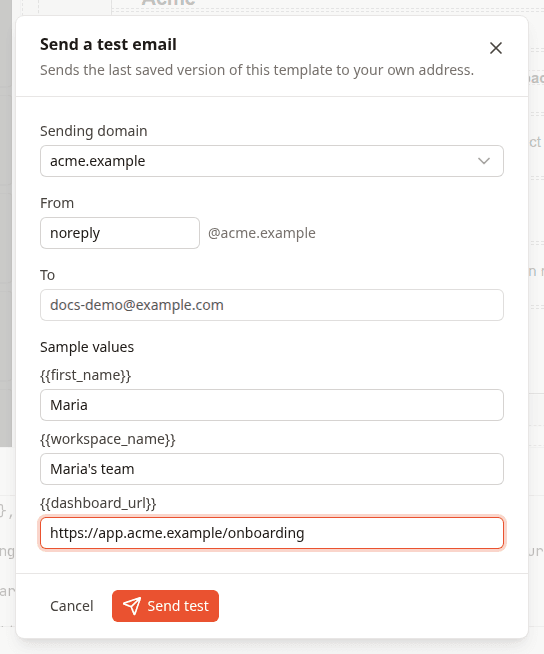
- Choose the Sending domain. Only verified domains are offered. Without one, the dialog says "Verify a sending domain first to send a test." and offers Go to Domains.
- Change From, the part before the
@, if you like. - To is always your own address and cannot be changed.
- Under Sample values, enter a value for each merge tag. A tag you leave empty stays in the test as written.
- Click Send test.
The test uses the last saved version of the template. With unsaved changes, the dialog reminds you to save first. The email goes through the same path as the API: a suppressed address or an unverified domain is refused, it counts toward your monthly volume, it is tracked if the domain has tracking on, and it appears in Activity.
Delete a template
Click Delete and confirm. Emails already sent with the template keep their history in Activity. Sends that still pass its templateId answer 404 Template not found, so update your code first.