API keys
An API key is how your application proves it may send for a workspace. Settings > API Keys lists the workspace's keys and is where you create and revoke them. Authentication covers how to send a key with each request.
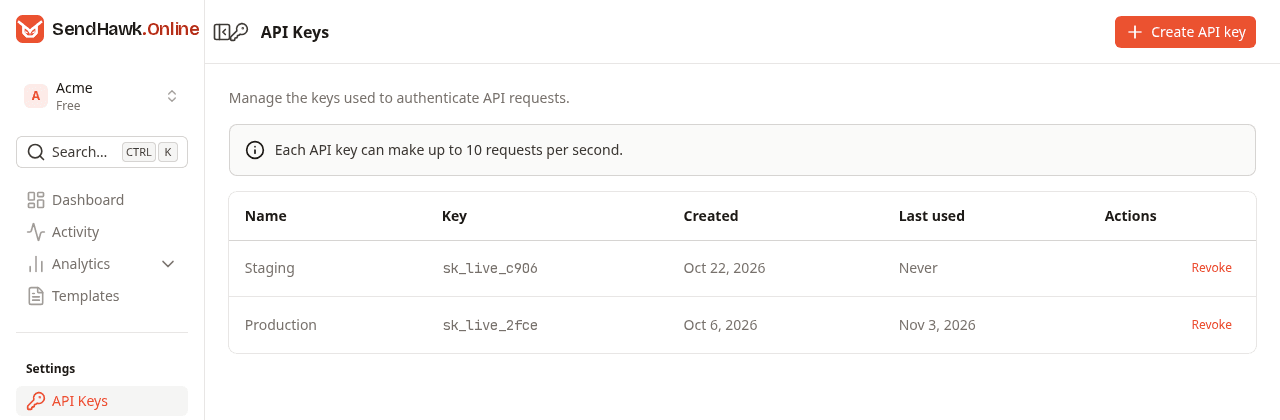
| Column | What it shows |
|---|---|
| Name | The name you gave the key. |
| Key | The first 12 characters of the key, sk_live_ and four more, so you can match it with the key in your configuration. The full key is never shown again after it is created. |
| Created | The day the key was created. |
| Last used | The day of the most recent API request made with the key, or Never. It updates with every request. |
| Actions | Revoke, see Revoke a key. |
Revoked keys disappear from the list. Owners and admins create and revoke keys; developers and viewers see the list, but creating or revoking is refused for them.
A key belongs to the workspace, not to the person who created it. It keeps working when that person leaves the team, so revoke it yourself if it should stop.
Create a key
- Click Create API key.
- Give it a name that says where it is used, for example
Production,StagingorBilling worker, so you know what breaks when you revoke it. - Click Create API key.
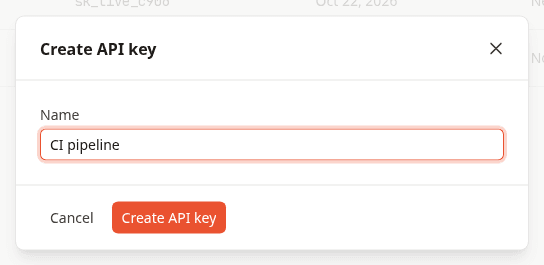
The dialog then shows the new key, once:
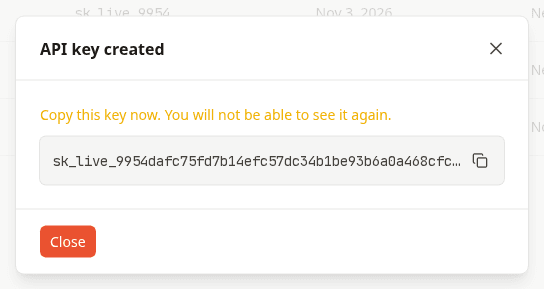
Click the copy button and put the key straight into your environment or secret manager, for example as SENDHAWK_API_KEY. The dialog is too narrow for the whole key, so copy it rather than reading it off the screen. When you click Close, the key is gone for good: SendHawk.Online stores only a hash of it and cannot show it again. If you lose a key, create a new one and revoke the old one.
Keys look like sk_live_ followed by 48 hexadecimal characters.
Revoke a key
Click Revoke next to the key and confirm:
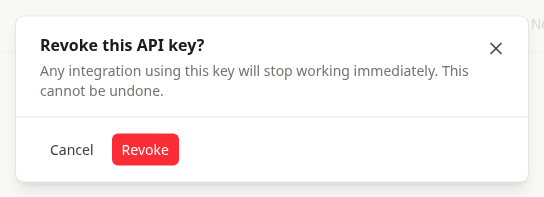
The key stops working at once: the next request made with it answers 401. Revoking cannot be undone.
To replace a key without downtime, create the new key, deploy it everywhere the old one is used, wait until Last used of the old key stops changing, then revoke the old one.
Rate limit
Each key can make up to 10 requests per second, counting every API request made with it, sending and reading alike. Over the limit the API answers 429 with a Retry-After header. Give each service its own key so one busy service cannot use up another's limit. Errors and limits shows how to retry.