Account and security
Your account is you, across every workspace you belong to. Settings > Account holds your profile and your security settings.
Sign up and sign in
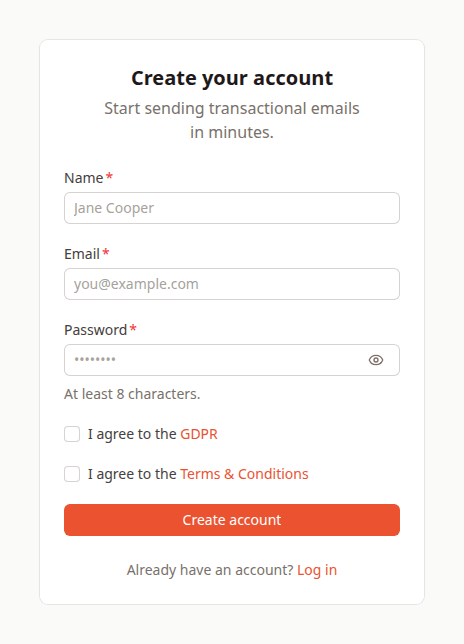
To create an account, enter your Name, Email and a Password of at least 8 characters, tick both I agree to the GDPR and I agree to the Terms & Conditions, and click Create account. You are signed in, a first workspace is created for you, and the welcome steps open. A link to confirm your address is on its way, see Email confirmation.
If someone invited you, use the link in their invitation: it opens sign-up with your address already filled in. Sign up with exactly that address to find the invitation waiting.
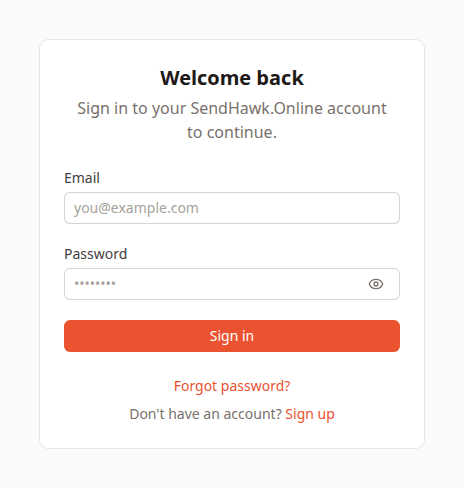
To sign in, enter your email and password and click Sign in. A session lasts 30 days on that browser, or until you sign out or change your password elsewhere. After 10 sign-in attempts for one address within 10 minutes, further attempts are refused until those 10 minutes are up.
Profile
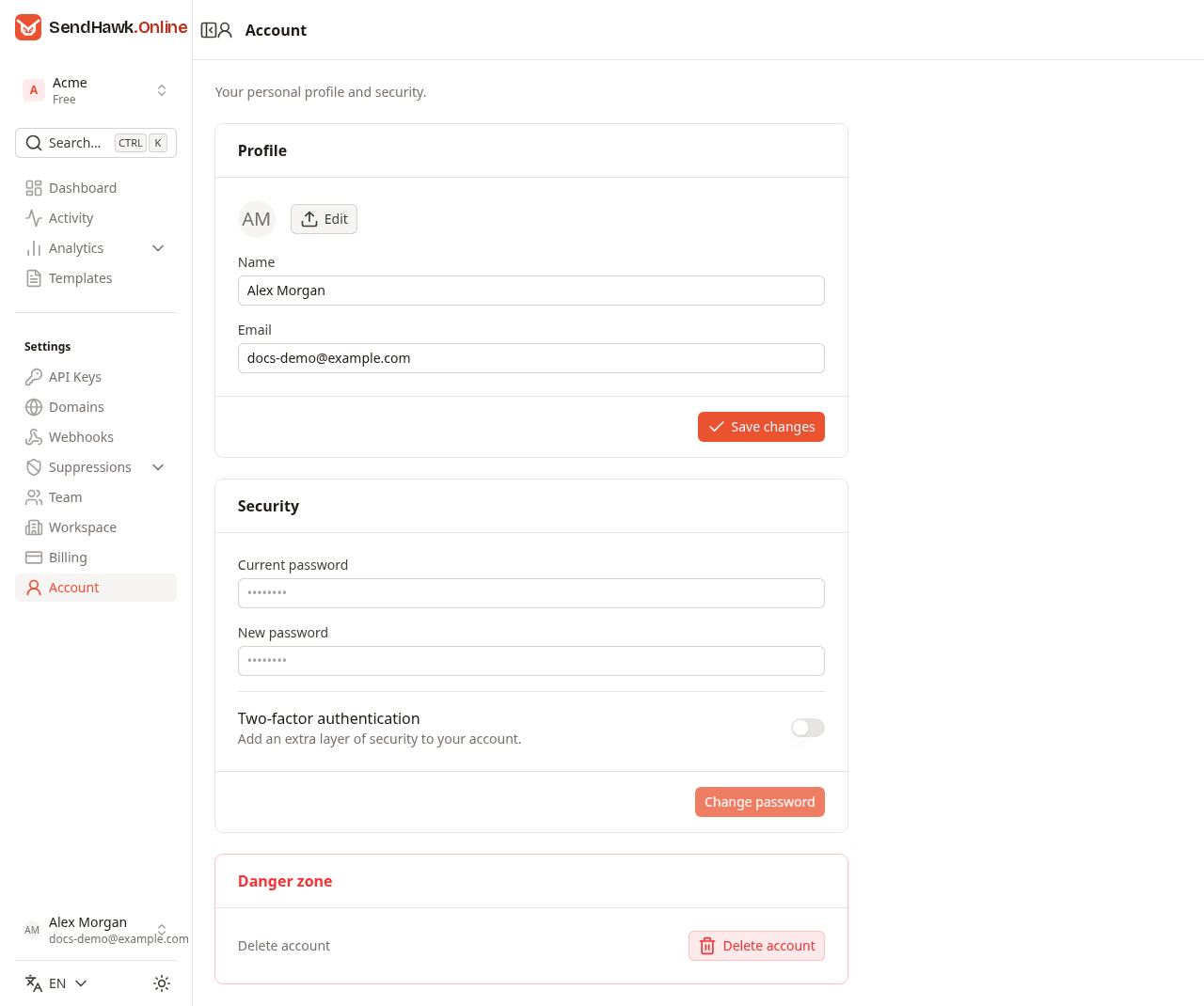
- Edit next to your picture lets you choose an image, crop it to a square and save it as your avatar. JPEG, PNG and WebP images work.
- Name is how teammates see you on the team list.
- Email is where SendHawk.Online writes to you and the address you sign in with. When you change it, the new address is unconfirmed until you open the link sent to it, see Email confirmation.
Click Save changes to save the name and email.
Change your password
In the Security card, enter your Current password and a New password of at least 8 characters, then click Change password. You stay signed in here, and every other session is signed out: on other browsers and devices, the next action asks to sign in again. Do this whenever you think someone else may know your password.
Two-factor authentication
With two-factor authentication on, signing in needs a 6-digit code from an authenticator app on your phone as well as your password.
Turn it on
- In the Security card, switch Two-factor authentication on.
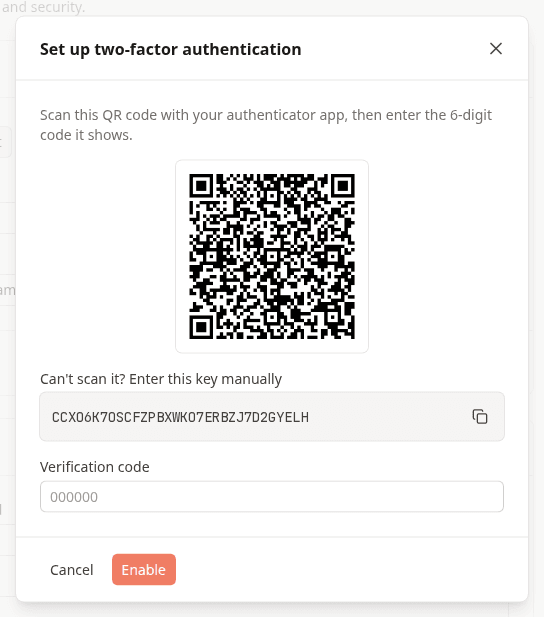
- Scan the QR code with an authenticator app, or type the key under Can't scan it? Enter this key manually into it.
- Enter the 6-digit code the app shows under Verification code, and click Enable.
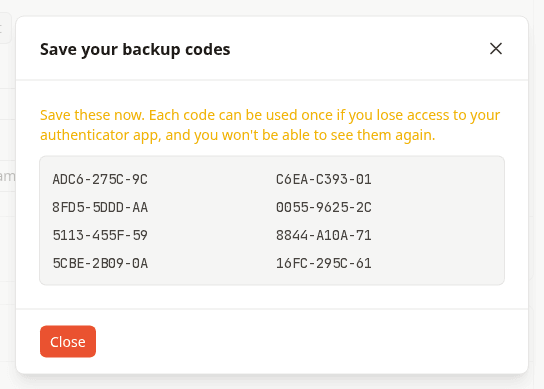
- Save the eight backup codes the dialog then shows, somewhere other than your phone, such as a password manager. They are shown only this once.
Sign in with it
After your email and password, the sign-in form asks for the code:
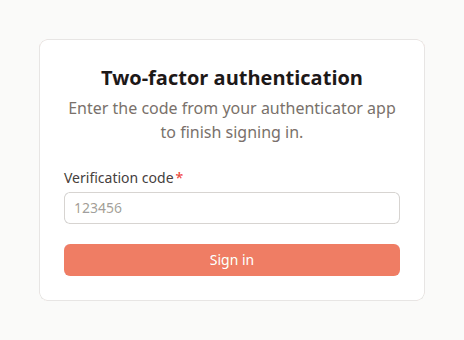
Enter the current code from your app. Codes change every 30 seconds, and the one just before or after is accepted too, so a phone clock that is slightly off still works.
Lost your phone? Enter one of your backup codes in the same field, exactly as shown, with its hyphens and capital letters. Each backup code works once.
Turn it off
Switch Two-factor authentication off, enter your current password and click Disable. Your secret and backup codes are deleted. To move to a new phone or get new backup codes, turn it off and on again: while it is on, a new setup cannot be started.
Email confirmation
When you sign up, and when you change your email, SendHawk.Online sends a link to confirm the address. It works for 3 days, and you can open it on any device, signed in or not.
Until the address is confirmed, every page shows Confirm your email address at the top. Send again sends a new link (up to 3 an hour); only the newest link works. You need a confirmed address to accept invitations to other workspaces.
Forgot your password
- On the sign-in page, click Forgot password?.
- Enter your email and click Send reset link.
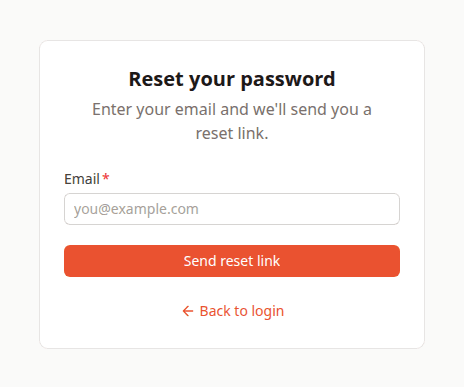
The page then says that if an account exists for the address, a reset link is on its way and works for 1 hour. It says the same for every address, so nobody can use it to find out who has an account.
- Open the link in the email, choose a new password of at least 8 characters and click Save new password.
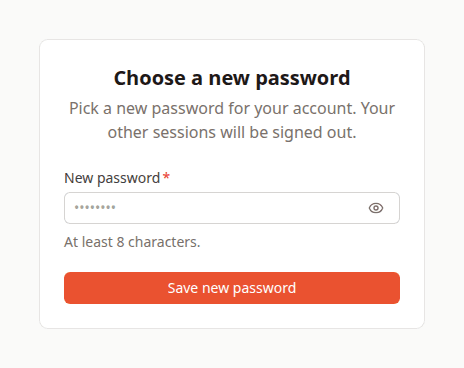
Every session of your account is signed out, and you are not signed in automatically: sign in with the new password, and with your two-factor code if it is on. A reset link works once, and only the newest one works. Setting a new password this way also confirms your email address.
Delete your account
In the Danger zone, click Delete account, enter your current password and confirm. This permanently deletes your account and every workspace you are the only member of, with everything in them. It cannot be undone.
If you own a workspace that has other members, including people who are only invited, the account cannot be deleted while that is so, because the dashboard cannot hand a workspace to someone else yet. Remove those members in Team or delete that workspace first.