Team, roles and invitations
Everyone who works in a workspace is a member of it with one role. Settings > Team lists the members and is where you invite, change and remove them.
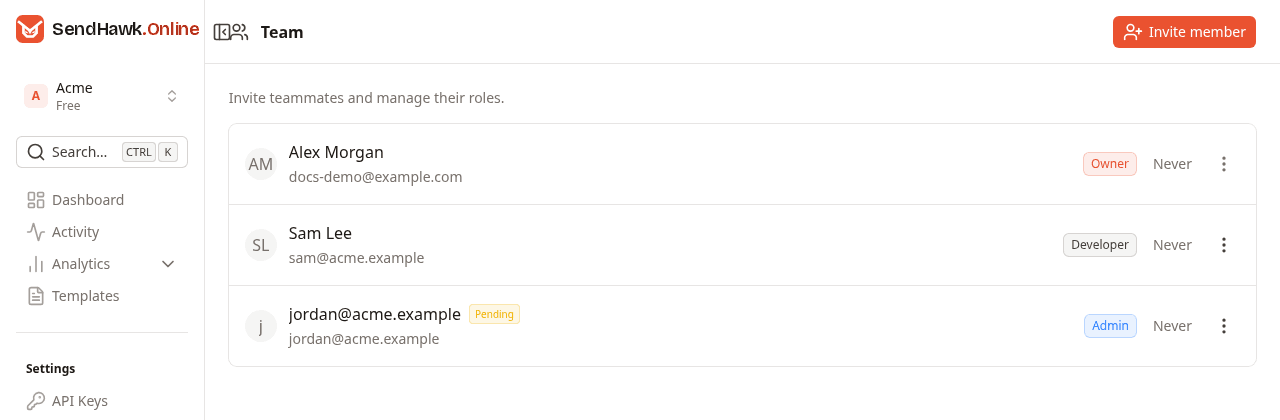
Each row shows the member's name and address, a Pending badge for an invitation that has not been accepted yet, their role, a last active column and a menu (three dots). For a pending invitation the row shows the address twice: the workspace only learns the person's name once they accept. The last active column shows when the member last used the workspace, updated at most every five minutes; Never means they have not opened it since joining.
Roles and permissions
Every workspace has exactly one Owner, the person who created it. The other roles are Admin, Developer and Viewer.
| What a member can do | Owner | Admin | Developer | Viewer |
|---|---|---|---|---|
| See the dashboard, activity, analytics, templates, domains and their DNS records, the API key list, webhooks and their deliveries, suppressions, the team and billing usage | Yes | Yes | Yes | Yes |
| Add, verify, test-send and delete domains, change tracking | Yes | Yes | No | No |
| Create and revoke API keys | Yes | Yes | No | No |
| Create, edit, delete and test-send templates | Yes | Yes | No | No |
| Add, test and delete webhook endpoints | Yes | Yes | No | No |
| Remove addresses from the suppression lists | Yes | Yes | No | No |
| Invite members, change their roles and remove them | Yes | Yes | No | No |
| Change the workspace settings | Yes | Yes | No | No |
| Delete the workspace | Yes | No | No | No |
Developers and viewers can do the same today: look at everything, change nothing. The dashboard hides the buttons for changes from them and shows a note at the top of each page that their access is read-only; the server refuses such changes anyway.
An admin can change the role of any member except the owner, including making someone else an admin. Nobody can make another member the owner: the dashboard has no way to hand over a workspace.
Your account itself (profile, password, two-factor authentication) is yours alone, whatever your role in any workspace. See Account and security.
Invite a member
- Click Invite member.
- Enter their Email address.
- Choose a Role: Admin, Developer or Viewer (the default).
- Click Invite member.
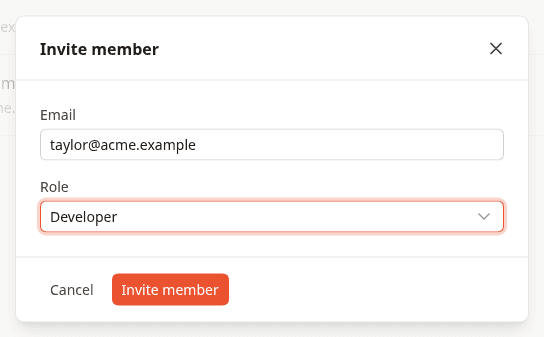
The person appears on the list as Pending and gets an email from SendHawk.Online:
- If they already have an account, the email links to the invitations page, where they accept after signing in.
- If they do not, it links to sign-up with their address filled in. They create an account with that address, confirm it, and accept.
A pending member has no access to the workspace at all until they accept. An address that is already a member, or already invited, cannot be invited again. Each person can send up to 20 invitations an hour.
Change a role or remove a member
Open the menu (three dots) on a member's row:
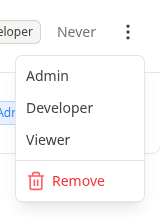
- Pick Admin, Developer or Viewer to change the role. It applies at once, and the dashboard says "Role updated".
- Remove asks "Remove this team member?" and, once confirmed, takes their access away immediately. Removing a pending member withdraws the invitation.
The owner's menu is switched off: the owner's role cannot be changed and the owner cannot be removed.
Removing a member does not touch what they created. API keys they made keep working, because keys belong to the workspace; revoke them in API keys if they should stop.
Accept an invitation
When a workspace invites you, a notice appears at the top of every page, Pending invitations, with View invitations. You can also open Invitations at /invitations:
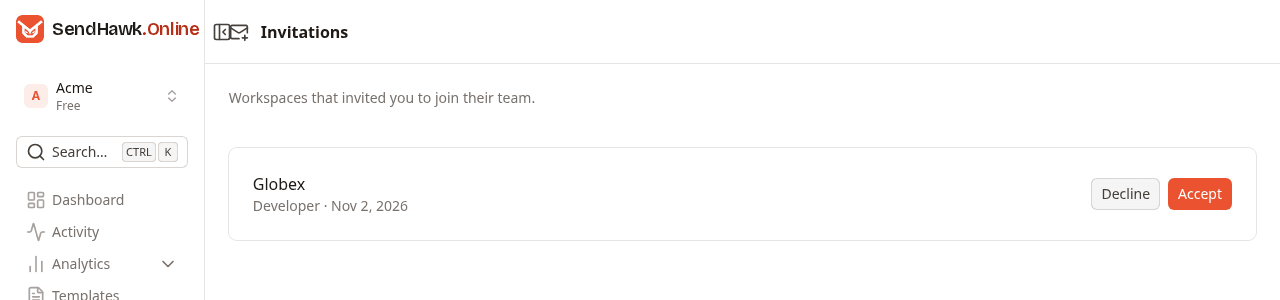
Each invitation shows the workspace, the role you were invited with and the date.
- Accept adds you to the workspace, switches the dashboard to it and opens its dashboard.
- Decline removes the invitation. The workspace can invite you again later.
You can accept only once your email address is confirmed: until then Accept is switched off and the page says "Confirm your email address first - we sent you a link." The invitation was sent to an address, and confirming it is what proves the account is that person's. Declining works without a confirmed address. See Email confirmation.